# Create and configure a bot
Open **My Bots** to create and manage bots. You can also use **Create bot** in the left sidebar at any time.
## Choose a creation method
1. Sign in to [ChatRex](https://app.chatrex.pro/).
2. Select **Create bot** in the sidebar or **New bot** on the **My Bots** page.
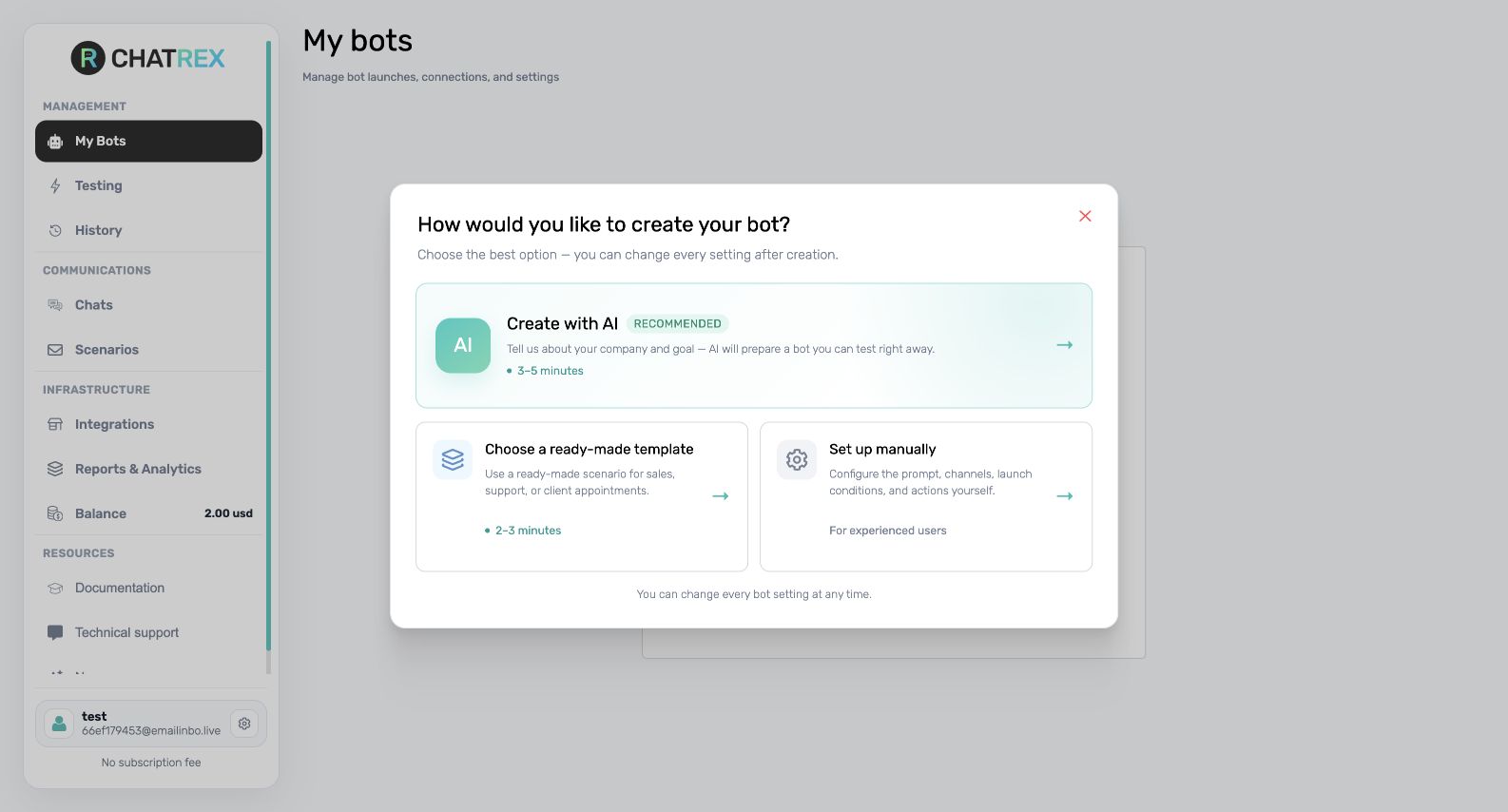
3. Choose one of the available methods:
- **Create with AI** — answer the assistant's questions and let ChatRex prepare the main instruction;
- **Choose a ready-made template** — start from a scenario for a specific business or integration;
- **Set up manually** — create an empty bot and configure every setting yourself.
 ## Review the Basic tab
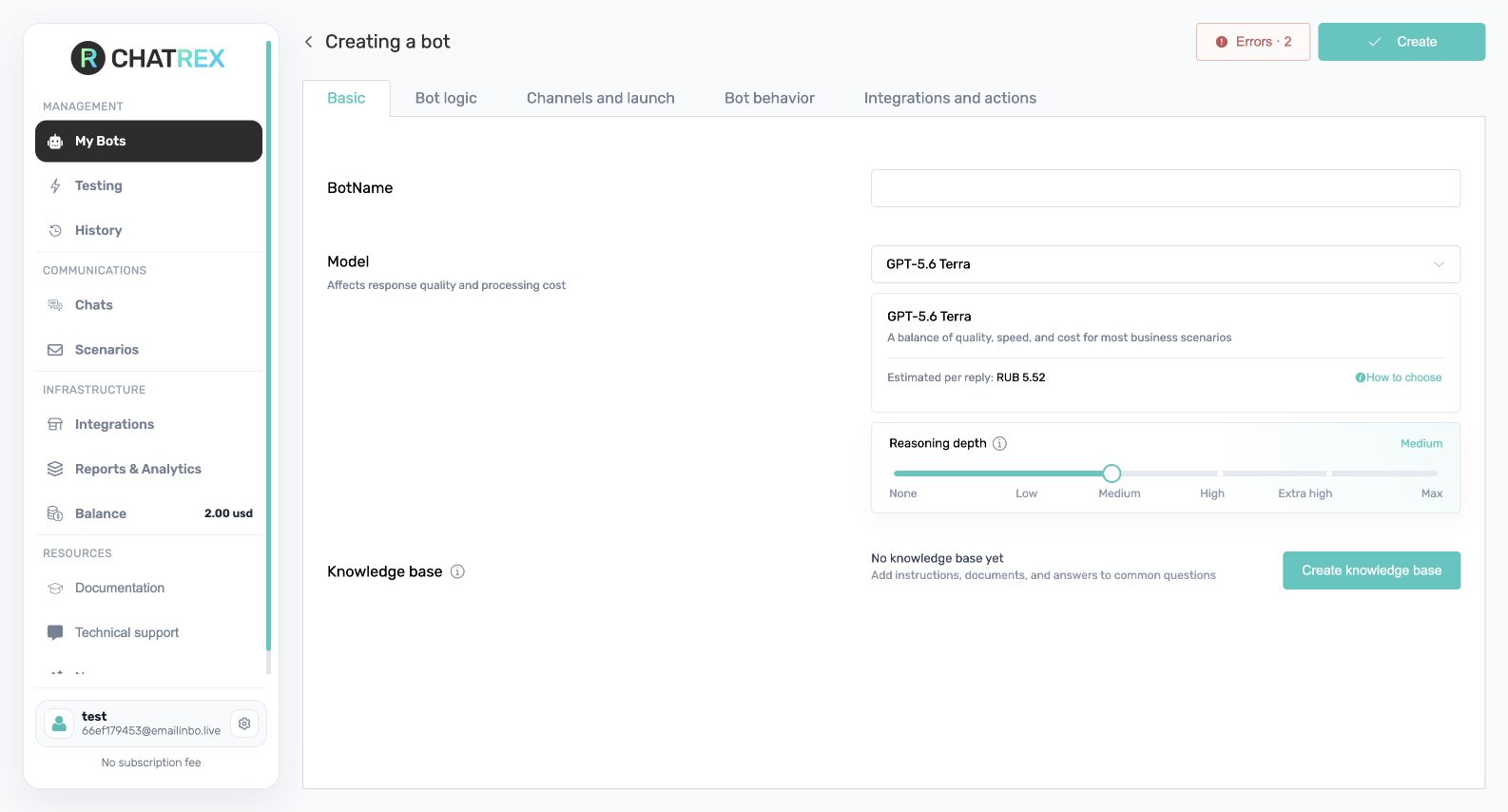
After creation, ChatRex opens the bot settings. On **Basic**, set a recognizable bot name, choose the model, connect a knowledge base if needed, and configure the weekly report option. Select **Save changes** after editing.
## Review the Basic tab
After creation, ChatRex opens the bot settings. On **Basic**, set a recognizable bot name, choose the model, connect a knowledge base if needed, and configure the weekly report option. Select **Save changes** after editing.
 ## Configure Bot logic
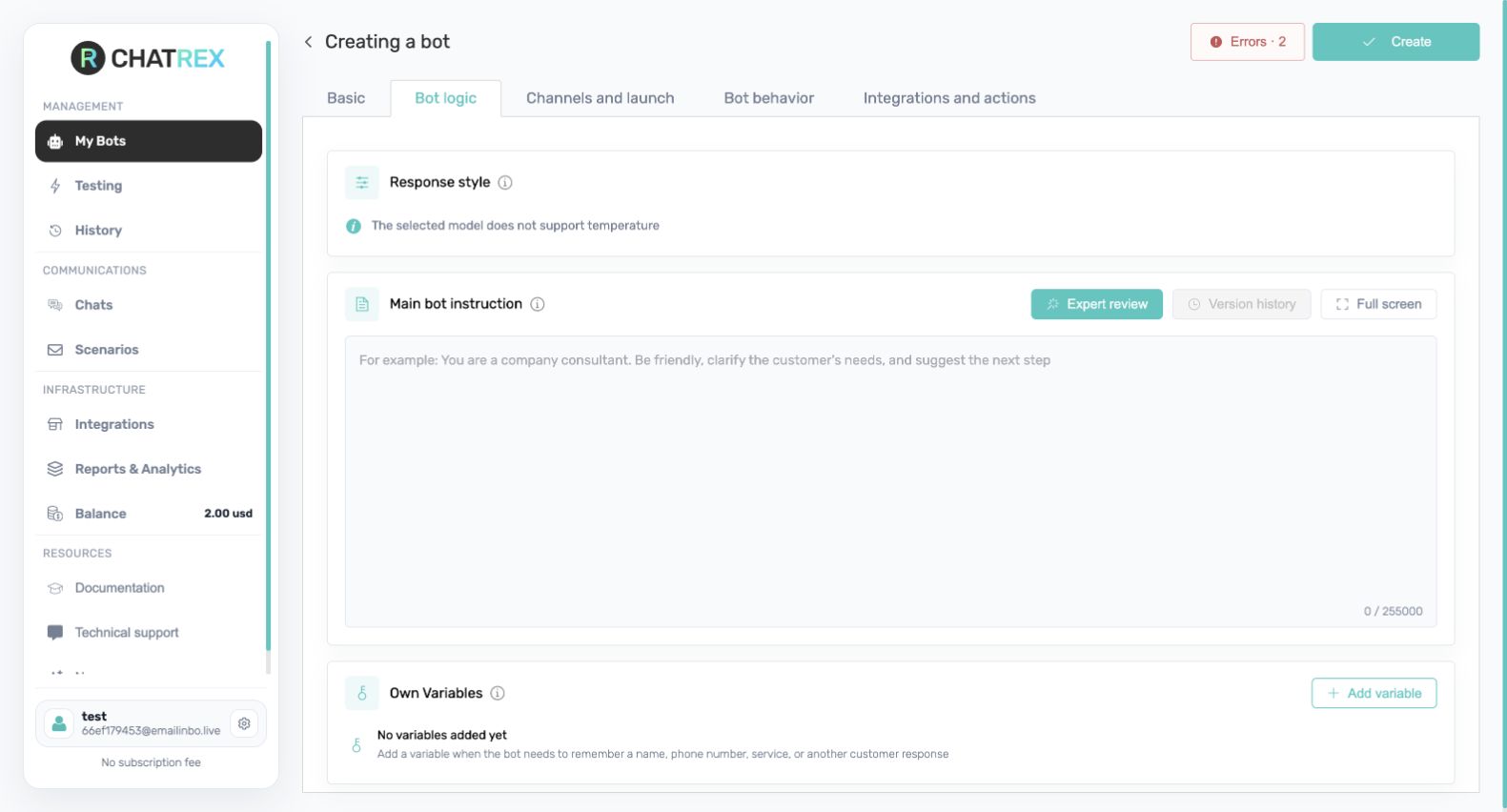
Open **Bot logic** to set the model temperature, write the main instruction, and add variables. The instruction should explain the bot's role, goal, allowed sources, conversation rules, limits, and when to hand the user over to a person.
## Configure Bot logic
Open **Bot logic** to set the model temperature, write the main instruction, and add variables. The instruction should explain the bot's role, goal, allowed sources, conversation rules, limits, and when to hand the user over to a person.
 ## The five settings tabs
- **Basic** — name, model, knowledge base, and weekly report.
- **Bot logic** — temperature, main instruction, and variables.
- **Channels and launch** — assigned channels, launch conditions, and working hours.
- **Bot behavior** — message handling, greeting, progress messages, and stopping.
- **Integrations and actions** — operations the bot can perform in connected services.
Creating a bot does not start it in a channel. You still need to connect and assign a channel, check the subscription, save the settings, and test the result.
## Next step
Continue with [**Configure the bot logic**](<./add-prompt.md>), then [**connect a channel**](<./connect-channels.md>).
## The five settings tabs
- **Basic** — name, model, knowledge base, and weekly report.
- **Bot logic** — temperature, main instruction, and variables.
- **Channels and launch** — assigned channels, launch conditions, and working hours.
- **Bot behavior** — message handling, greeting, progress messages, and stopping.
- **Integrations and actions** — operations the bot can perform in connected services.
Creating a bot does not start it in a channel. You still need to connect and assign a channel, check the subscription, save the settings, and test the result.
## Next step
Continue with [**Configure the bot logic**](<./add-prompt.md>), then [**connect a channel**](<./connect-channels.md>).